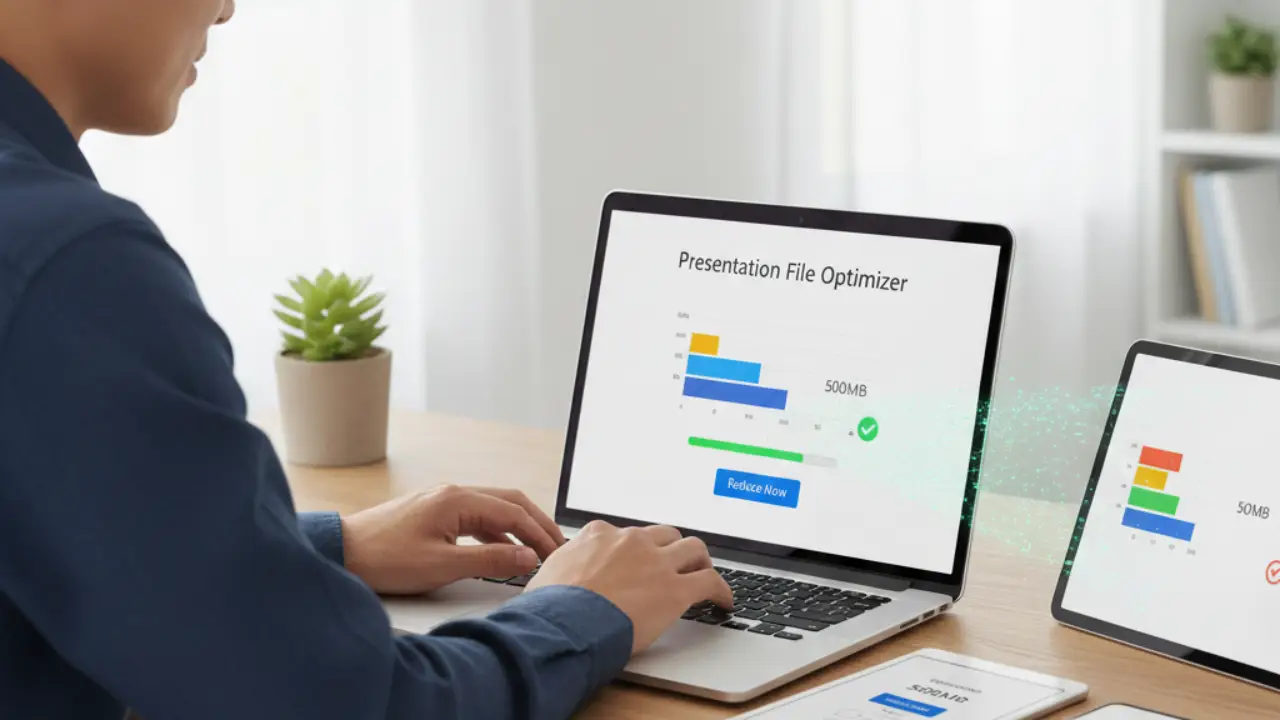
Large presentation files cause real problems. They refuse to email, upload slowly, and crash during meetings. Most people face this issue right before a deadline. Learning how to reduce presentation file size saves time, stress, and credibility. This guide shares practical, tested methods you can apply today without harming visual quality or professionalism.
1. Audit What Actually Makes Your File Heavy
Every large presentation has a reason behind its size. Images, videos, fonts, and hidden data usually cause the problem. Start by checking file properties to see the exact size. PowerPoint, Google Slides, and Keynote all show file details easily.
Look for slides packed with photos, charts, or media. Presentations copied from older versions often carry unused elements. Removing unnecessary content reduces size faster than random compression.
Real example: A marketing pitch grew to 120 MB because old draft slides stayed hidden. Deleting them dropped the file to 42 MB.
2. Compress Images the Right Way
High resolution images increase file size quickly. Many users paste images directly from cameras or stock sites. These images often exceed screen display needs.
Use built-in image compression tools. PowerPoint offers image compression under picture formatting. Choose web or email resolution instead of print quality. Google Slides compresses images automatically but benefits from resized uploads.
Never stretch images after inserting them. Resize images before uploading using tools like TinyPNG, Squoosh, or ImageOptim.
Practical tip: A 5 MB image resized correctly often becomes under 500 KB with no visible quality loss.
3. Replace Embedded Videos With Smart Links
Embedded videos are the fastest way to inflate file size. A short video clip can add tens of megabytes instantly. Unless offline playback is required, avoid embedding videos.
Upload videos to platforms like YouTube, Vimeo, or cloud storage. Insert clickable links or thumbnails instead. This approach keeps presentations lightweight and flexible.
For offline use, trim videos to essential parts using free editors like Shotcut or iMovie.
Real example: A training deck dropped from 180 MB to 35 MB after replacing four embedded videos with links.
4. Remove Hidden Metadata and Notes
Presentations store more than visible slides. Speaker notes, comments, revision history, and embedded data add unnecessary weight. Cleaning this hidden content often surprises users.
PowerPoint includes a document inspector to remove metadata. Google Slides allows comment deletion and version cleanup. Exporting and re-saving files also removes extra data.
This step improves privacy along with file size.
5. Use Standard Fonts Only
Custom fonts look attractive but increase file size. Presentations embed fonts to avoid display issues. Each embedded font adds extra kilobytes or megabytes.
Stick to standard system fonts like Arial, Calibri, Helvetica, or Roboto. These fonts display correctly across devices without embedding.
If branding requires custom fonts, convert text-heavy slides to images selectively.
Practical insight: Removing three embedded fonts reduced one client presentation by 8 MB.
6. Simplify Charts and Visual Elements
Complex charts and layered graphics increase file size. Copying charts from spreadsheets embeds data and formulas. Simplifying charts reduces weight without harming clarity.
Convert charts to static images after final edits. Use fewer data points where possible. Avoid unnecessary animations and shadows.
Tools like Power BI exports or Google Charts allow optimized visuals.
7. Reduce Animation and Transition Overload
Animations add invisible data to every slide. Multiple effects compound file size quickly. Subtle transitions look professional and load faster.
Limit animations to essential emphasis only. Remove unused transitions. Choose simple fade effects over complex motion paths.
Real-world case: A sales deck shrank by 22 percent after removing decorative animations.
8. Save Using Optimized File Formats
File format matters more than people realize. Older formats store data inefficiently. Always save using modern formats like PPTX instead of PPT.
Export presentations as PDF when editing is unnecessary. PDFs maintain quality while drastically reducing size. Online tools like Smallpdf and ILovePDF help optimize exports further.
Practical tip: A 40 MB PPTX often becomes a 6 MB optimized PDF.
9. Split Large Presentations Strategically
Sometimes content volume causes the problem. Long presentations benefit from segmentation. Split decks by topic, section, or audience.
This approach improves usability and performance. It also allows faster loading during meetings.
Cloud tools like Google Drive and Dropbox handle multiple linked files smoothly.
10. Use Cloud-Based Presentation Tools
Cloud platforms optimize files automatically. Google Slides, Canva, and Microsoft Online compress content silently. They reduce file size while preserving quality.
Collaborating through cloud tools also avoids repeated file duplication. Version history stays clean without increasing file weight.
Export final versions only when required.
11. Clean Master Slides and Layouts
Unused slide layouts stay hidden but consume space. Master slides often contain old logos, images, or backgrounds.
Open slide master view and remove unused layouts. Simplify backgrounds and remove decorative elements.
This step often gets overlooked but delivers noticeable size reduction.
12. Rebuild Instead of Over-Compressing
Sometimes compression damages quality or causes glitches. Rebuilding heavy slides from scratch often works better. Copy content selectively into a fresh file.
This method removes corrupted elements and legacy data. It also improves performance and stability.
Case example: A conference deck rebuilt manually reduced size by 60 percent with better reliability.
Final Thoughts and Action Steps
Knowing how to reduce presentation file size changes how confidently you share your work. Small improvements compound into major benefits. Faster uploads, smoother presentations, and fewer technical issues follow naturally.
Apply two or three steps from this list today. Start with image compression and hidden data cleanup. Then review fonts and media usage. Tools and habits matter more than quick fixes.
Which method helped you the most? Share your experience or challenges in the comments. Your insights might help someone else avoid a stressful presentation moment.
