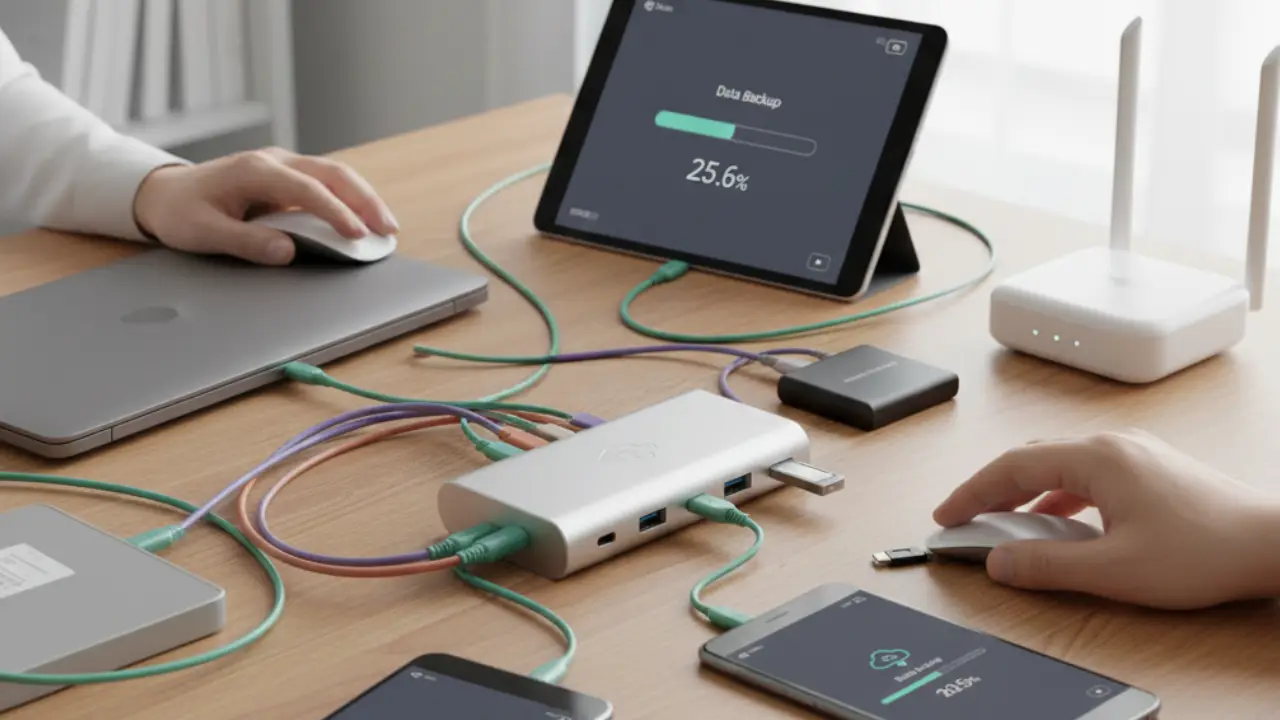
osing files hurts more than people admit. Photos vanish. Work disappears. Passwords get lost. Learning how to backup multiple devices removes that fear completely. The good news is that backups do not need technical skills or complicated systems. A clean setup can protect phones, laptops, tablets, and external drives with very little effort.
This guide breaks everything into practical steps you can apply today. Each section builds on real habits, not theory. The goal stays simple. You should spend less time managing backups and more time using your devices confidently.
1. Start With a Clear Device Inventory
Many backup problems begin with confusion. People forget which devices they own or what data lives where. Start by listing every device you use weekly. Include laptops, phones, tablets, smartwatches, and external drives.
Next, note what matters on each device. Photos often live on phones. Work files sit on laptops. Notes hide inside apps. This clarity shapes your entire backup plan.
Someone working remotely may rely on one laptop and one phone. A family might manage four phones, two tablets, and a shared computer. The setup changes, but the thinking stays identical.
2. Decide What Actually Needs Backup
Not all data deserves equal attention. Backups work best when they focus on value. Prioritize personal files, creative work, documents, and account data.
Streaming apps do not need backups. Downloaded installers rarely matter. Temporary files only slow systems down.
A photographer may back up raw images daily. A student may protect notes and assignments weekly. A business owner may secure invoices and contracts immediately.
This step saves storage space and reduces backup errors later.
3. Choose One Primary Backup Method
Trying every method creates chaos. Choose one main approach, then support it with a secondary option.
Cloud backups work well for most people. Services like Google Drive, iCloud, Dropbox, OneDrive, and Sync.com offer automatic syncing. Once enabled, files update quietly.
External drives suit users who prefer offline control. Tools like Time Machine or File History automate local backups. Network attached storage works well for families or small teams.
To backup multiple devices easily, cloud services usually win. They require minimal setup and no cables.
4. Use Automatic Backups Everywhere
Manual backups fail because humans forget. Automation removes risk.
Enable auto upload for photos on phones. Turn on continuous sync for folders on laptops. Schedule system backups overnight.
Most cloud tools allow selective sync. Choose important folders only. This avoids unnecessary uploads and speeds everything up.
A writer who enabled automatic folder sync avoided disaster after a laptop crash. Their draft reappeared instantly on a replacement device.
Automation creates peace of mind that manual systems never provide.
5. Standardize Folder Structures Across Devices
Different folder names cause confusion. Standardization simplifies everything.
Use the same folder names on all devices. Keep Documents, Photos, Videos, and Projects consistent. Cloud tools sync faster when structures match.
This habit helps when switching devices or sharing files. It also reduces duplicate uploads.
A freelancer who renamed folders across devices reduced storage use significantly. Searching files became easier overnight.
Consistency turns backups into muscle memory.
6. Protect Mobile Devices Separately
Phones create data nonstop. Photos, messages, app data, and recordings pile up fast.
Enable cloud backups within device settings. iOS users should turn on iCloud backup. Android users should enable Google Backup.
Third party tools like Amazon Photos or Mega offer extra layers. These tools help when cloud storage limits feel restrictive.
Phones get lost more often than laptops. Mobile backups deserve extra attention.
7. Apply the 3-2-1 Backup Rule Simply
The classic 3-2-1 rule still works today. Keep three copies of data. Use two different storage types. Store one copy offsite.
You can simplify this easily. Use your device as the first copy and cloud backup as the second. Use an external drive monthly as the third.
This setup protects against theft, hardware failure, and account issues.
A small business followed this rule and recovered quickly after ransomware. Their offline copy saved everything.
8. Manage Storage Without Overpaying
Backup plans fail when storage fills up. Monitor usage monthly.
Delete duplicate photos. Archive old projects. Move finished work to cold storage services like Backblaze B2 or Wasabi.
Many cloud services offer family plans. These reduce costs while supporting many devices.
Choosing the right storage tier prevents surprise interruptions.
9. Secure Your Backups Properly
Backups without security invite problems. Use strong passwords and two factor authentication.
Encrypt external drives using built in tools. Windows BitLocker and macOS FileVault work well.
Password managers like Bitwarden or 1Password store backup credentials safely.
Security ensures your backup multiple devices strategy stays reliable.
10. Test Restores Before You Need Them
Many people discover failures during emergencies. Testing avoids panic.
Restore one file monthly. Try restoring a photo or document on a different device. Confirm access works.
This habit builds confidence. It also reveals sync issues early.
A student avoided exam stress after testing restores weeks earlier.
Testing turns backups into a trusted system.
11. Create a Simple Backup Checklist
Complex plans fail under pressure. Write a short checklist.
Include monthly checks, storage reviews, and restore tests. Keep it visible.
This checklist works for families, teams, and solo users. Everyone knows what to do.
A shared checklist saved one household after a stolen laptop incident.
12. Scale Easily as Devices Increase
New devices appear often. Backup systems should adapt.
Add devices using the same cloud account. Follow the same folder rules. Enable automation immediately.
Avoid creating special exceptions. Uniformity keeps everything simple.
This approach allows you to backup multiple devices without rebuilding systems each time.
Final Thoughts
Backing up data should feel boring. That means it works. A simple system protects memories, work, and identity quietly.
Start today with one device. Add automation. Expand slowly. Complexity disappears when habits stay consistent.
Which backup method do you currently use, and what confuses you most about managing multiple devices? Share your experience in the comments. Your insight may help someone avoid losing important data.
