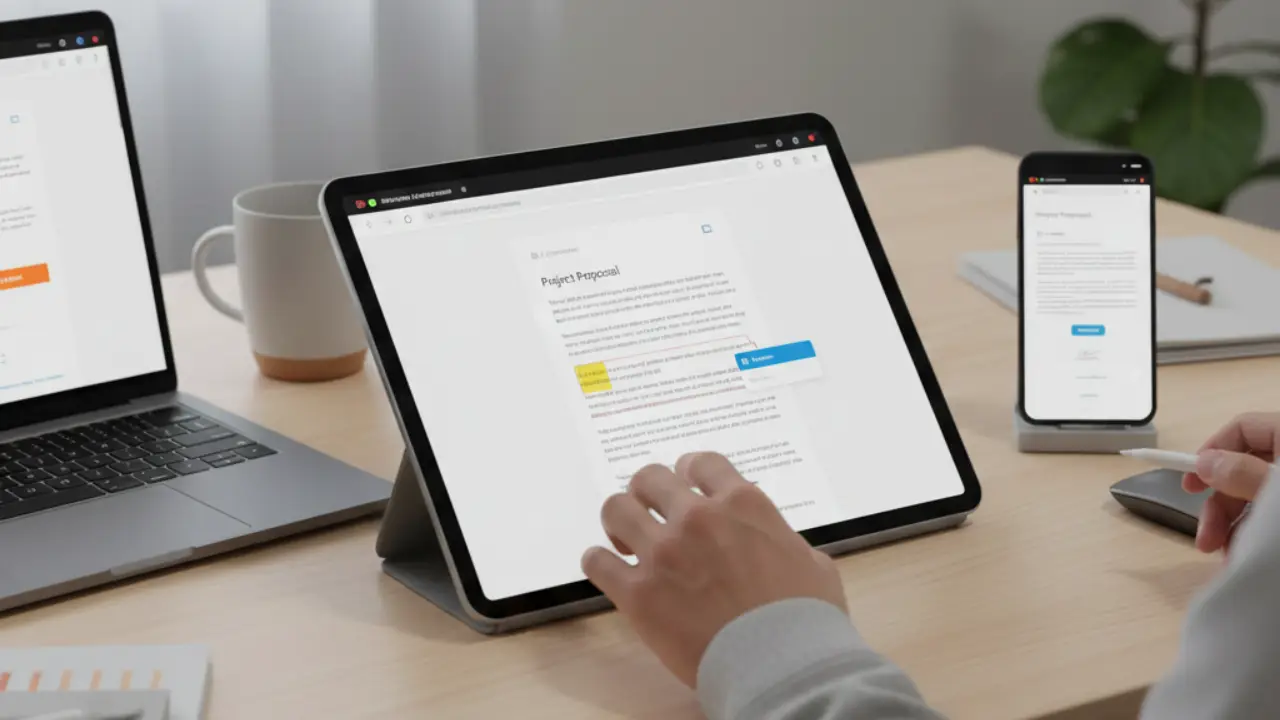
Opening a PDF just to fix one line should never feel like a chore. Many people still download heavy software for simple edits. That habit wastes time, storage, and mental energy. Tools now allow you to edit PDFs online directly from your browser. No installs, updates, or device slowdown.
This guide explains practical, real-world ways to edit PDFs online without downloads. Every method here works across devices and locations. Each step focuses on speed, privacy, and everyday usability.
1. Edit Text Directly Inside the Browser
Most online PDF editors allow text edits without software installs. Upload your file, click the text, and type changes instantly. This works well for resumes, contracts, invoices, and school documents.
A freelancer updating a client proposal can fix pricing or dates within seconds. A student can correct typos before submission. A small business owner can revise terms without calling a designer.
Useful tools include Smallpdf, PDFescape, Sejda, and iLovePDF. These platforms support text replacement, font resizing, and alignment.
Always check formatting after edits. Some fonts may shift slightly. Preview before saving.
2. Add or Remove Pages Without Software
Page management often feels complicated. Online tools simplify this process. You can delete unwanted pages or insert new ones quickly.
A consultant might remove pricing pages before sharing a proposal. A teacher can combine worksheets into one PDF. A marketer can insert updated slides into an existing file.
Most tools offer drag-and-drop page rearranging. You can also rotate pages easily.
Tools like PDF24, iLovePDF, and Sejda handle page edits smoothly.
Save a copy before major changes. Mistakes happen when moving many pages.
3. Fill and Sign PDFs Digitally
Printing documents just to sign them feels outdated. Online PDF editors support form filling and e-signatures.
A remote worker can sign contracts from a phone. A landlord can fill lease details quickly. A client can approve paperwork without scanning anything.
Use tools that allow typed signatures, drawn signatures, or uploaded signature images. Many platforms store your signature securely for reuse.
Trusted tools include DocHub, Smallpdf, and Adobe Acrobat Online.
Double-check signature placement. Misaligned signatures look unprofessional.
4. Annotate PDFs for Review or Study
Annotations help during reviews, learning, and collaboration. Online editors allow highlights, comments, and drawings.
A manager reviewing a report can leave comments. A student can highlight exam notes. A designer can mark changes for feedback.
These edits remain visible without altering original content. Most tools allow color selection and comment replies.
PDFescape and Sejda offer strong annotation features. Google Drive also supports basic annotations.
Export annotated versions separately. Keep the original file untouched.
5. Convert PDFs to Editable Formats
Some PDFs resist direct editing. Conversion solves this problem. Online tools convert PDFs to Word, Excel, or PowerPoint formats.
A recruiter may convert resumes to Word for formatting. An accountant can extract tables into spreadsheets. A presenter can update slides quickly.
Conversion accuracy varies. Simple layouts convert best. Complex designs may need manual cleanup.
Top tools include iLovePDF, Smallpdf, and Adobe online converters.
Review converted files carefully. Tables and images need alignment checks.
6. Merge Multiple PDFs Into One File
Combining files improves organization. Online editors merge PDFs in seconds.
A legal assistant can combine affidavits. A student can submit one assignment file. A project manager can bundle reports.
Most tools let you reorder files before merging. File size limits apply on free plans.
PDF24 and iLovePDF handle large merges reliably.
Name merged files clearly. Avoid confusion during sharing.
7. Compress PDFs for Easy Sharing
Large PDFs cause email issues. Compression reduces file size without visible quality loss.
A job applicant can email resumes easily. A teacher can upload materials faster. A marketer can share brochures smoothly.
Compression tools balance size and clarity. Choose medium compression for text-heavy files.
Smallpdf and iLovePDF offer adjustable compression levels.
Always preview compressed files. Text clarity matters.
8. Protect PDFs With Passwords
Sensitive documents need protection. Online editors add passwords and permissions.
A business owner can lock invoices. A student can protect certificates. A consultant can restrict editing rights.
Set strong passwords. Avoid common words or dates.
PDF24 and Smallpdf support encryption without downloads.
Store passwords securely. Losing access means redoing work.
9. Use Cloud-Based Editors for Team Collaboration
Teams work better with shared access. Some online PDF tools support real-time collaboration.
Editors can comment simultaneously. Review cycles shorten. Version confusion reduces.
Google Drive allows basic PDF comments. DocHub supports shared annotations.
Assign clear roles. Too many editors cause confusion.
10. Work Safely With Privacy in Mind
Uploading documents online requires trust. Choose platforms with clear privacy policies.
Avoid tools that store files indefinitely. Use services that auto-delete uploads.
For confidential documents, download edited files immediately. Log out after use.
Adobe, Smallpdf, and Sejda disclose data handling clearly.
Privacy awareness saves future trouble.
Advanced Takeaways That Save Time
Bookmark two reliable tools. One for quick edits. One for conversions. This habit saves minutes daily.
Rename files before uploading. Clear names reduce mistakes.
Preview on different devices. Mobile views reveal layout issues.
Use browser incognito mode for sensitive files. This adds privacy.
Keep backups. Online edits feel fast, but safety matters.
Final Thoughts
Learning to edit PDFs online removes friction from daily work. These tools replace heavy software with speed and flexibility. They work anywhere, anytime, on any device.
Which method do you use most when you edit PDFs online? Share your favorite tools or problems in the comments. Your experience helps others choose smarter.
